
IROA APP
The night stays on your phone. Only what needs a look goes to your clinic.
An app for patients enrolled at a clinic. Your phone reads the sleep, oxygen saturation and heart rate your watch recorded overnight, and each morning seals only the signs that need a look and sends them to your clinic.
The IROA app does not diagnose. If you are short of breath or have chest pain, call your local emergency number now.
A CLOSER LOOK
Meet the screens you’ll actually use.
Start on your phone. Check the next step on your wrist. Here is what to look for, and where to go next.
Actual development-app captures · Korean interface · Test states, not patient records. Development controls are hidden before capture.
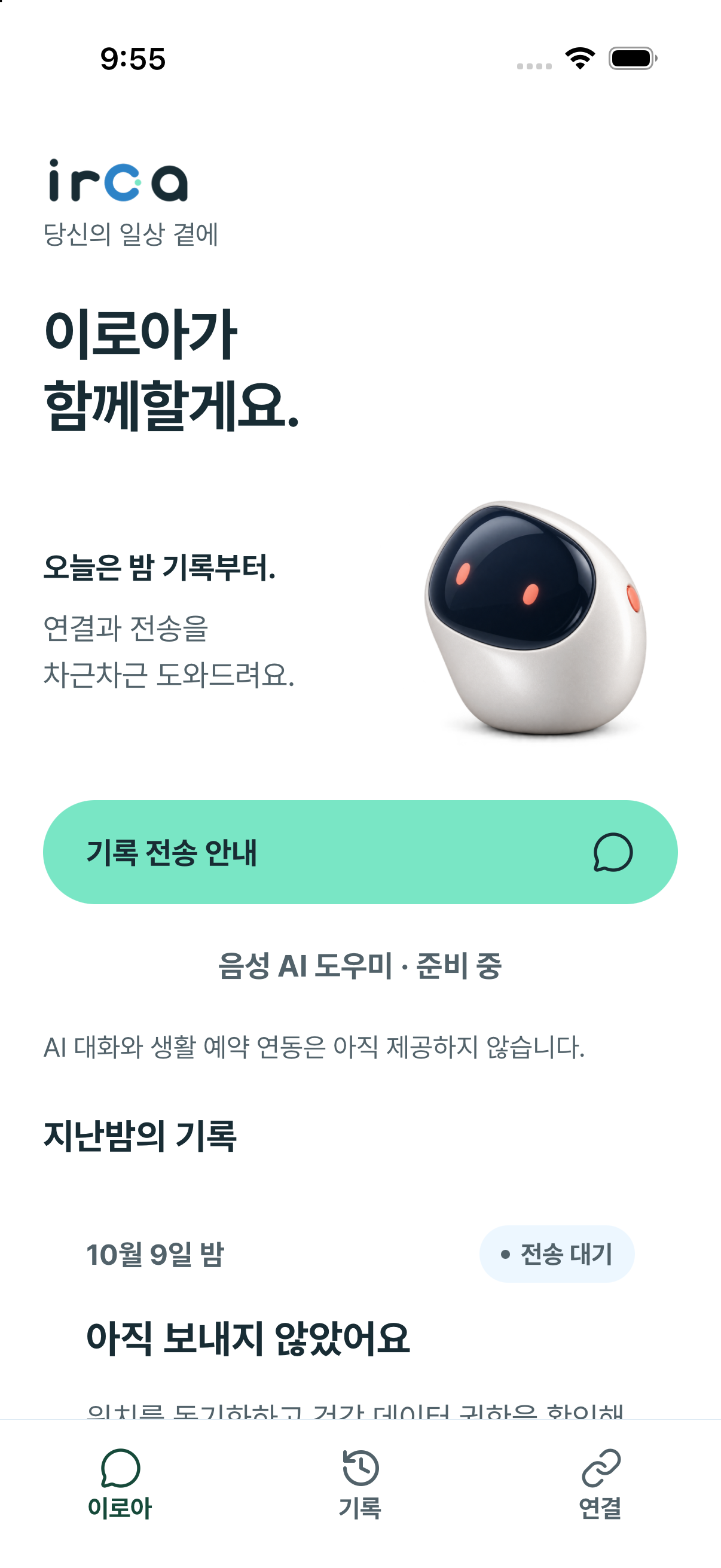
01 / PHONE
Your starting point: IROA
Open the app to see last night’s delivery status and find the record guide. You don’t have to work out what to do from a number alone.
- IROA
Check last night’s status. If you need help, tap “Record delivery guide.”
- History
Read the delivery status next to each date for the last seven days.
- Connection
Check your clinic enrollment, permissions and watch connection.
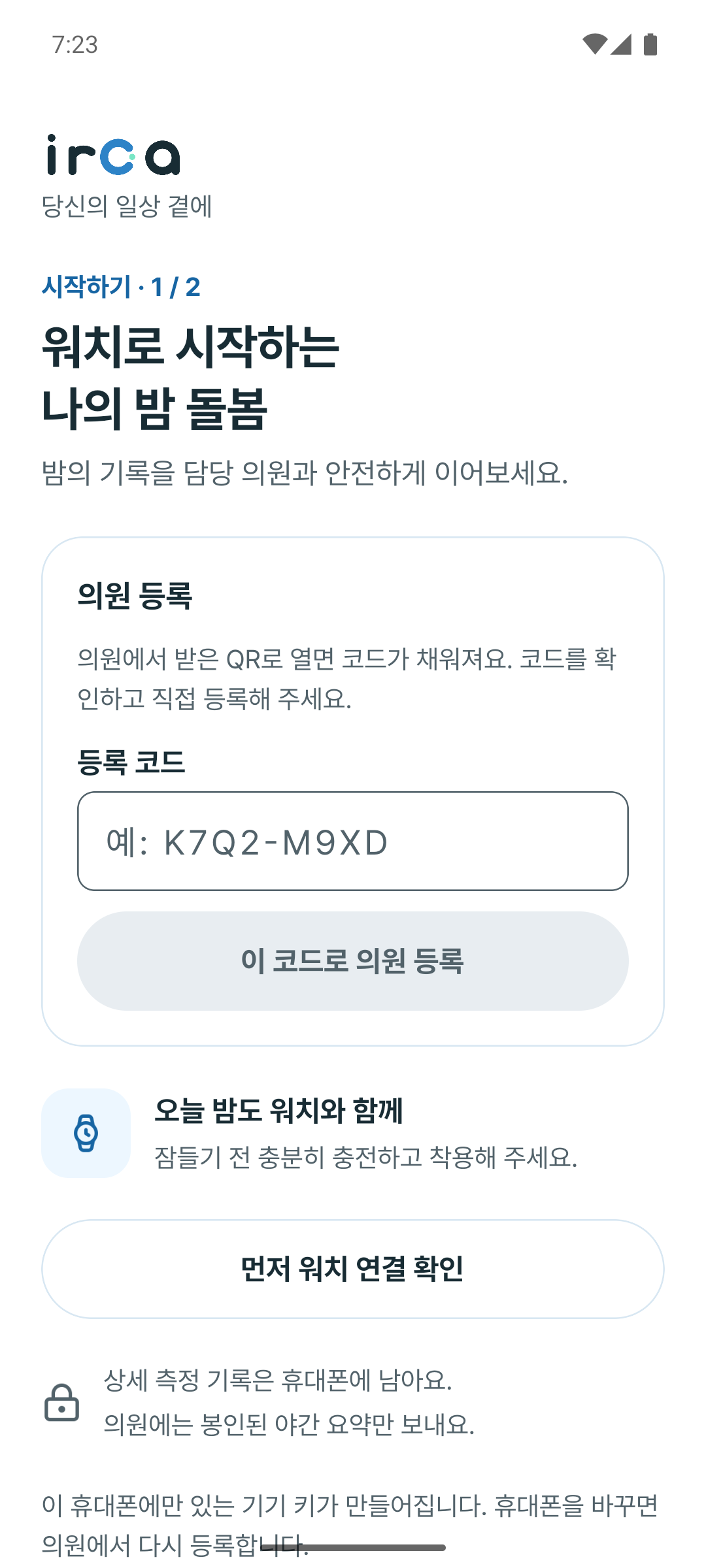
02 / GET STARTED
First, connect to your clinic.
The enrollment screen is the first step, not a public sign-up form. Your clinic provides a one-time code; the app creates this phone’s device key when you confirm.
- 1Receive your code
Ask a participating clinic for its enrollment code or QR.
- 2Enter and check it
Review the code, then tap “Enroll in clinic with this code.” The button becomes available after you enter a code.
- 3Choose permissions separately
Health-data read permission is requested separately and can be withdrawn.
The code displayed in the empty field is an example placeholder, not an enrollment credential.
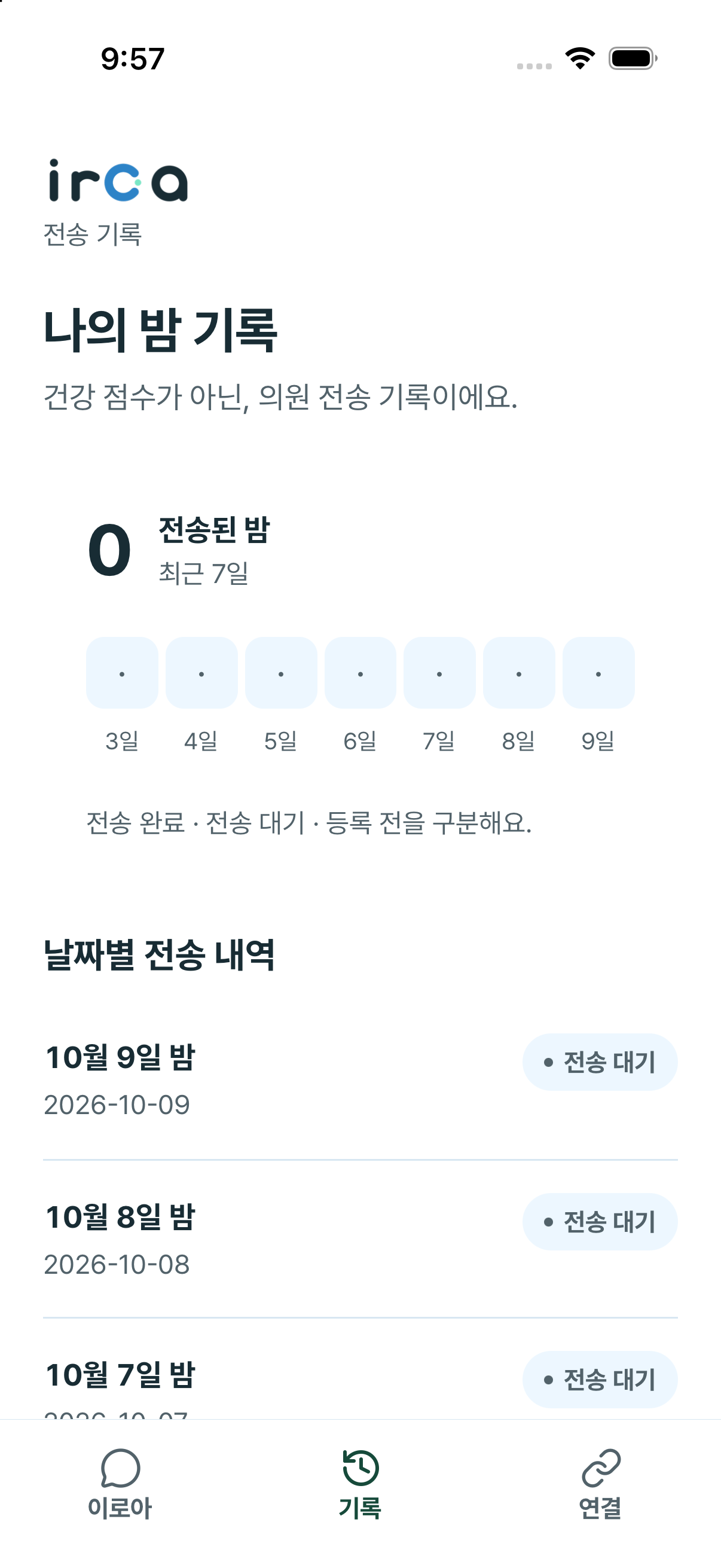
03 / HISTORY
Was it sent? Check the date.
Tap “History” at the bottom of the app. The top shows how many nights were sent in the last seven days; the list below shows the status for each date.
Bottom menu → History → Read the dated entries
- Sent
- The record was sent to the clinic. This does not mean the clinic has read it.
- Waiting to send
- The record is not marked as sent yet. Open the record guide for the next steps.
- Before enrollment
- The date is before this phone’s enrollment. It is not a missed delivery.
The “0” in this test capture counts sent nights. It is not a health score. Scroll down the list to read the status for each date.
Find help for a waiting recordON YOUR WRIST
Four screens. Know your next step.
Get ready for tonight, check the connection, read last night’s status and find your participation balance. See the same task on Apple Watch and Wear OS.
Actual development-app captures from a watchOS simulator and a Wear OS emulator. Korean interface; test states, not patient records. Participation uses isolated examples with awards disabled. Status and next action are grouped first; scroll for details. Physical-device validation is pending.
Apple Watch · watchOS
Wear OS
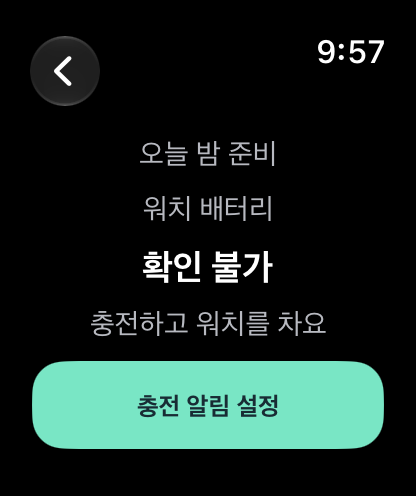
01 / Tonight’s preparation
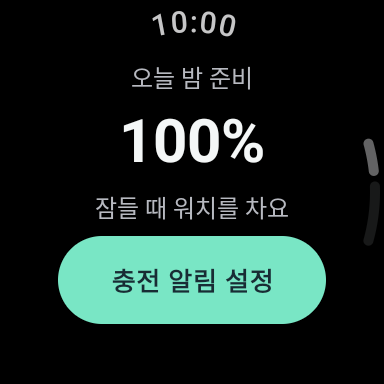
Before bed, charge it and wear it.
“Tonight’s preparation” shows the watch battery and a reminder to wear it while sleeping.
Where to open it
- Apple Watch
- Home → scroll down → Tonight’s preparation
- Wear OS
- Home → scroll down → Tonight’s preparation
What to do
- Read the battery level. If it is low, charge the watch before bed.
- Wear the watch when you go to sleep. Tap “Charging reminder settings” to review reminders; check sleep measurement in the watch’s health app.
These captures show “Unavailable” on watchOS and 100% in the Wear emulator. They are not readings from your watch. IROA does not itself measure sleep.
See the phone’s record guideApple Watch · watchOS
Wear OS
02 / Phone connection
Not connected? Open your phone first.
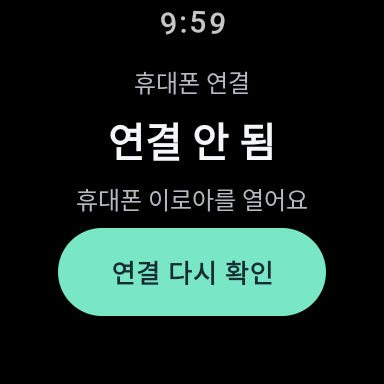
The connection screen tells you how to reconnect. A connection check does not send a health record.
Where to open it
- Apple Watch
- Last night’s record → Check phone connection, or Alert settings → Phone connection
- Wear OS
- Home → Connection guide, or Settings → Phone connection
What to do
- Open IROA on the paired phone and check that Bluetooth is on.
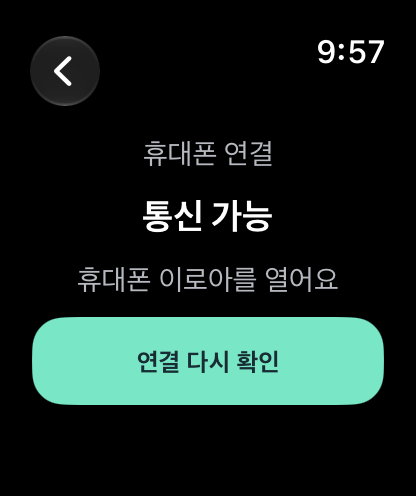
- Tap “Check connection again” on the watch. Check the phone for the latest update receipt separately.
Wear OS shows “Not connected”; watchOS shows “Communication available.” watchOS shows the system-reported communication state. Neither connection state proves that the latest record status was received.
See connection and update receipt on the phoneApple Watch · watchOS
Wear OS
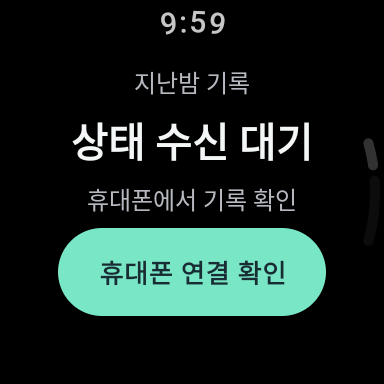
03 / Last night’s status
Read the status. Continue on your phone.
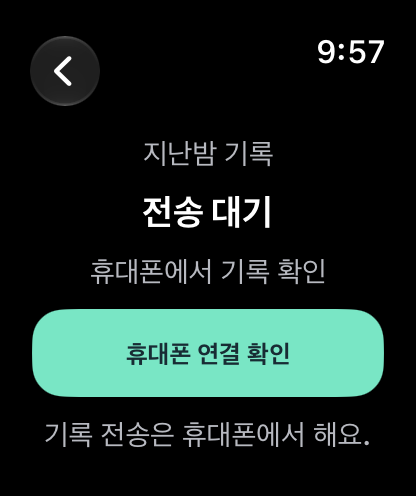
“Last night’s record” shows the status shared by the phone. It is not a sleep score or a clinic-read receipt.
Where to open it
- Apple Watch
- Home → Last night’s record, or Open delivery guide
- Wear OS
- Home → scroll down → Last night’s record
What to do
- Read the status: waiting to send, sent, or waiting for an update.
- If it is waiting, open IROA on your phone. Check enrollment and the record guide, then read the dated history.
watchOS shows “Waiting to send”; Wear OS shows “Waiting for status.” “Sent” does not mean a clinician has read the record.
Read the phone’s dated historyApple Watch · watchOS
Wear OS
04 / Participation points
See your participation, not a health score.
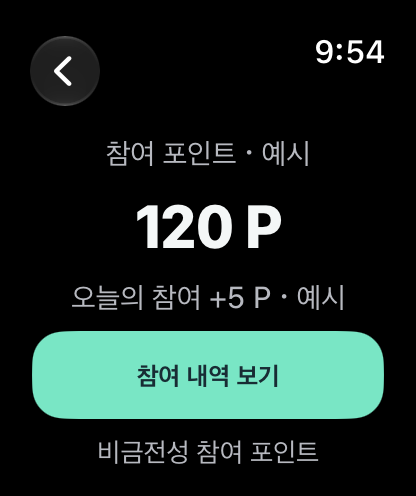
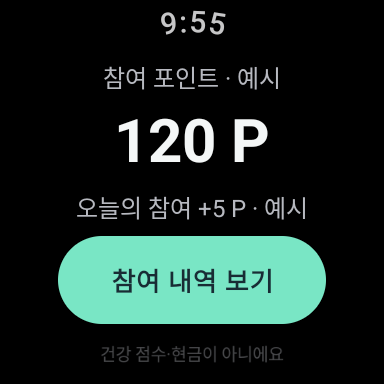
The example shows a total of 120 P and today’s participation of +5 P. Continue on your phone to see which activity it represents.
Where to open it
- Apple Watch
- Home → scroll down → Participation points
- Wear OS
- Home → scroll down → Participation points
What to do
- Read the total 120 P and today’s +5 P. Both are labelled examples, not your account balance or an approved earning rate.
- Tap “View participation entries” for the phone guidance. Opening or refreshing this screen does not award points.
Actual development-app captures in an isolated example mode. Point awards remain disabled. Participation points are not a health score, cash, USDC or IROA tokens.
See My participation on the phone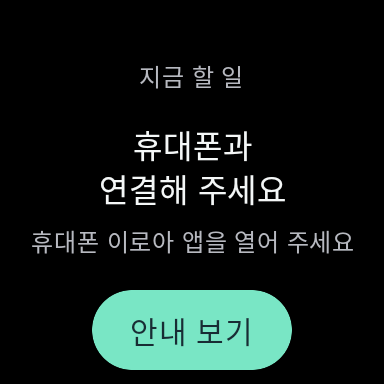
Start from the Wear OS Tile, too.
The Tile shows the next step without first finding the app. Tap “Open guide” to open IROA. If it asks you to connect, open IROA on your phone first.
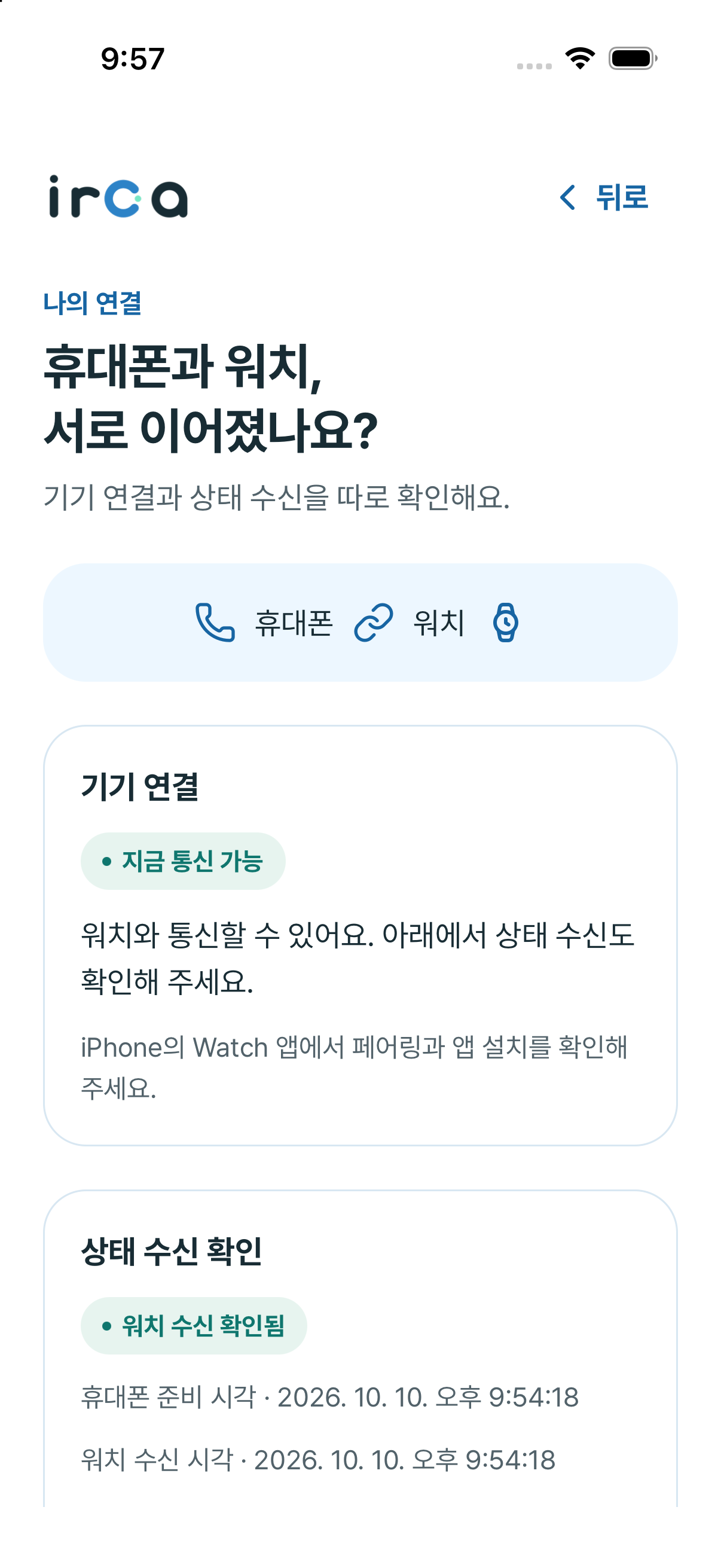
PHONE ↔ WATCH
Connected? Now check what arrived.
First check that the phone and watch are connected. Then check whether the watch received the current status. These are two different checks.
Connection → My watch → Phone–watch connection
- Device connection
- Can the devices communicate? Pairing alone does not mean a status update arrived.
- Status receipt
- Did the watch acknowledge this same update? Check the receipt and its time.
- Sync current status again
- Request an update from this screen, then check the receipt. It does not send a record to the clinic.
- 01
On your phone
Check last night’s record and the connection screen.
- 02
On your wrist
See the shared record status and preparation guidance.
- 03
Receipt confirmed
The phone distinguishes a pending update from a matching watch receipt.
Phone-to-watch status receipts have been checked on paired iPhone and Apple Watch simulators. Android–Wear OS pairing validation is paused; physical-device validation remains pending on both platforms.
A watch receipt is not a clinic receipt, a clinical review or a health assessment.
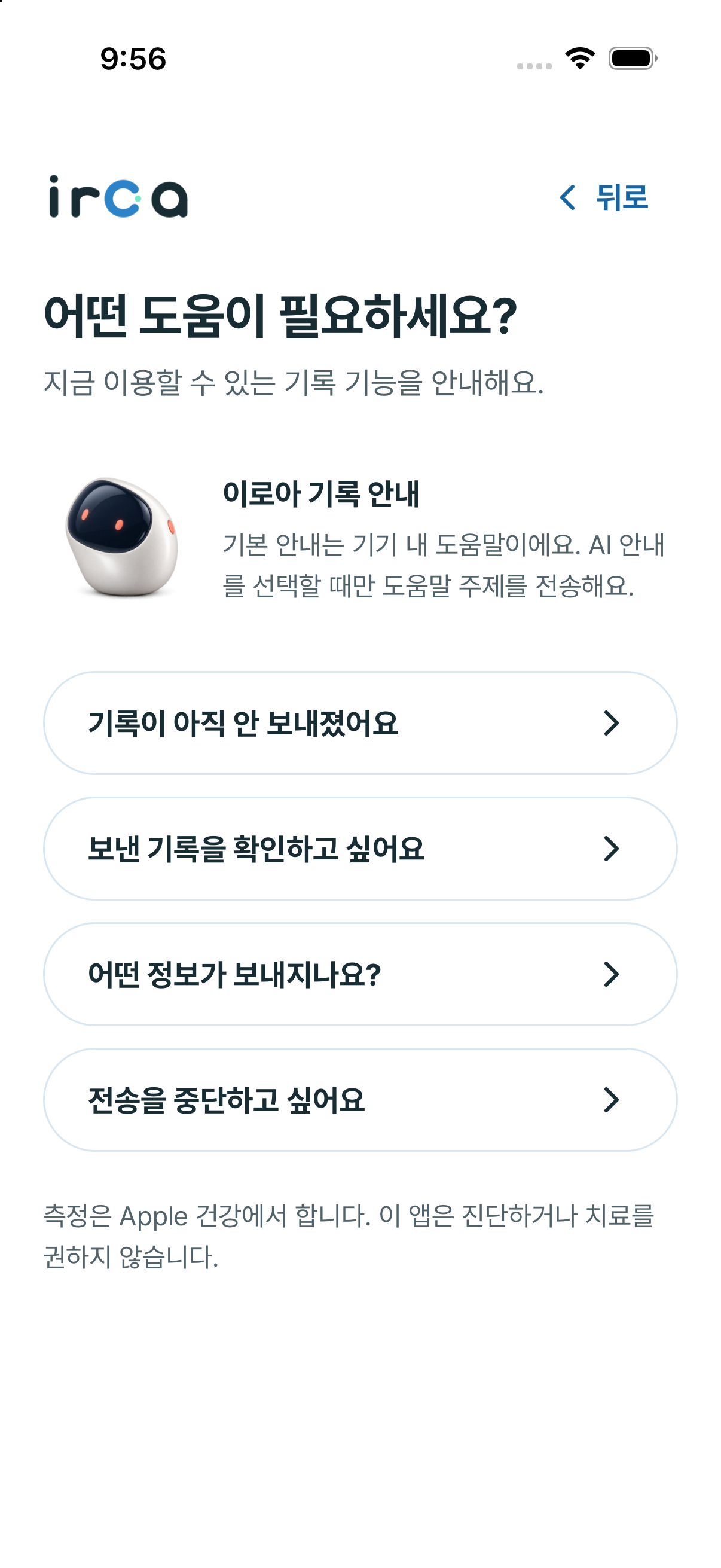
HELP / CHOOSE A QUESTION
Choose the question you have.
No need to type a long message. Tap a question to see what to check and which screen to open next. The basic guidance works without remote AI.
IROA → Record delivery guide → Choose a topic
- My record has not been sent yet
- I want to check sent records
- What information is sent?
- I want to stop sending
Remote AI not activated
The AI module sends only fixed help text. It does not send health records, an enrollment reference or free-form messages. It does not diagnose or recommend treatment.
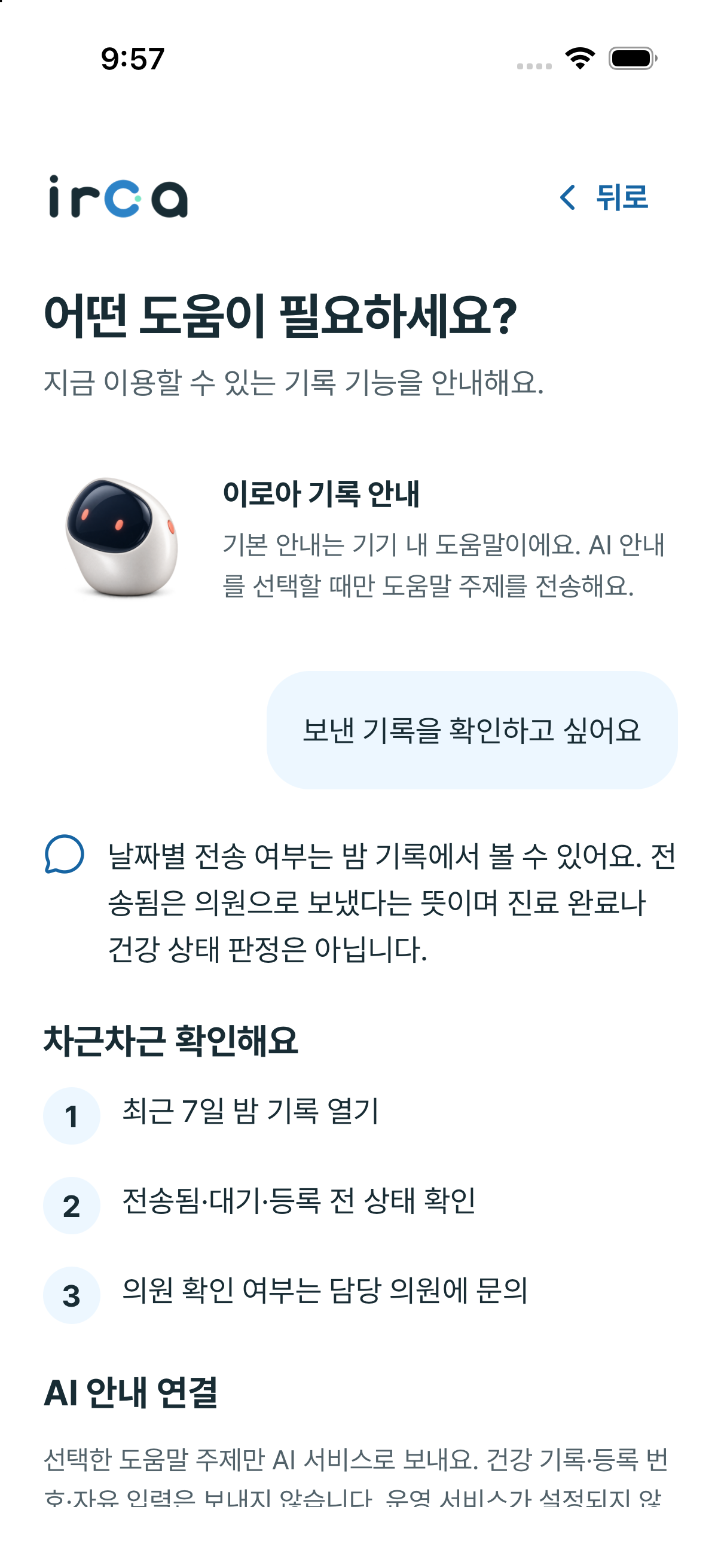
HELP / FOLLOW THE STEPS
Read the steps. Open the right screen.
For “I want to check sent records,” the app explains what delivery means, then shows three steps. Scroll down and tap “Open night records” to go to History.
- 1Read the explanation
“Sent” means delivery, not a diagnosis or a completed consultation.
- 2Follow the steps
Check the last seven days and read the status next to each date.
- 3Open the related screen
Tap “Open night records” below the guidance. Use “Choose other help” to change the question.
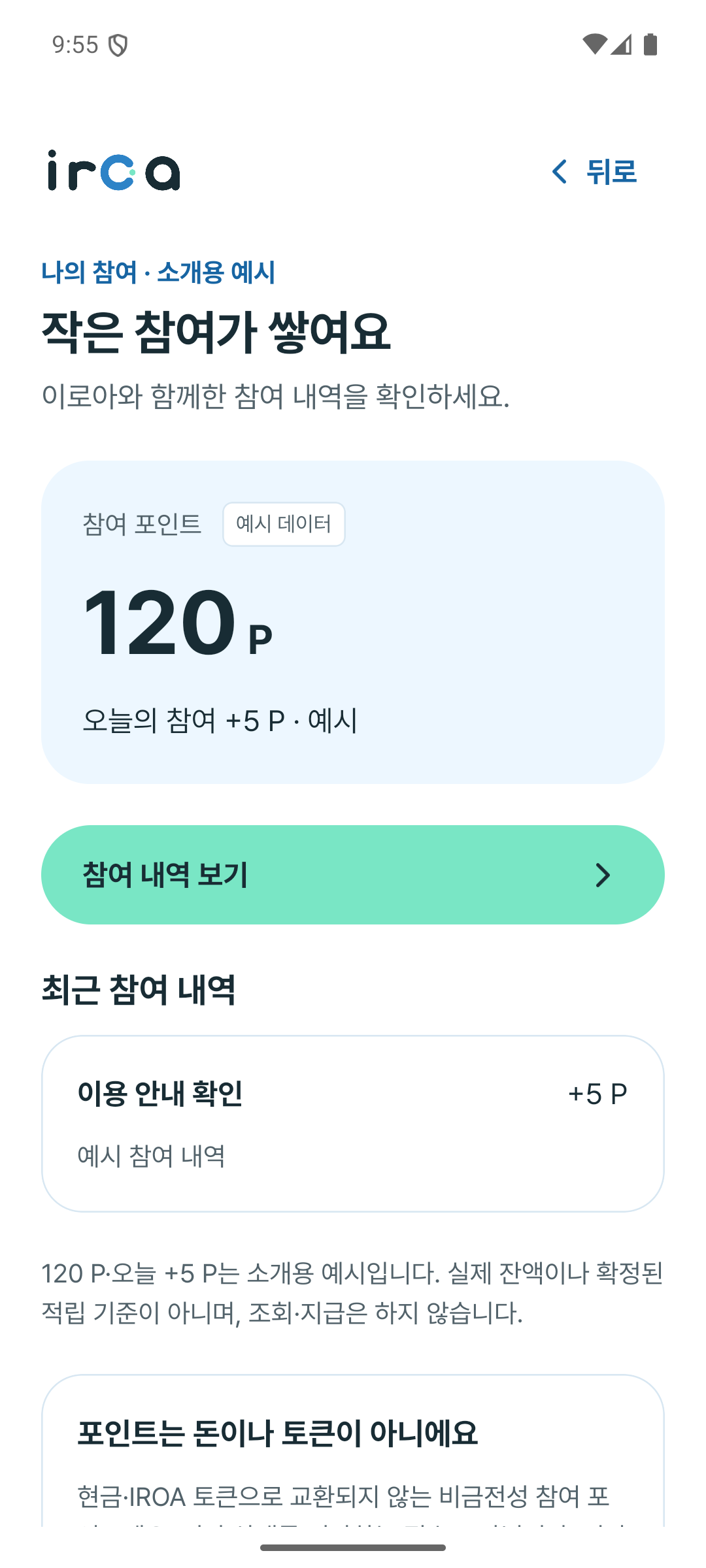
PARTICIPATION, NOT PAYMENT
See your participation, not a health score.
Open “My participation points” on the IROA home screen. This screen shows your own entries when they can be verified. Point awards have not started.
IROA → My participation points
- 120 P · Today +5 P
- These numbers show how a balance and an activity entry look. They are example data, not a real balance or an approved earning rate. In normal use, an unverified balance stays unconfirmed.
- View participation entries
- Read the activity and its points below. The example is “Learning guidance,” not a reward for sharing health data. Viewing or refreshing does not award points.
- Pending
- An activity is waiting for confirmation.
- Earned
- An approved activity has been confirmed.
- Reversed
- An entry was cancelled; its history is retained.
- Pilot activities: onboarding, learning and daily check-in. Not yet earning points.
- Daily, weekly and monthly limits prevent repeat awards, including after phone replacement within the same clinic-scoped participant identity.
- Not cash, USDC, IROA tokens or a health score. No awards for AI calls, health-data submission or granting permissions.
Before you get started
Can I enroll on my own?
Enrollment requires a one-time code from a participating clinic. Store download links are not public yet.
Does the watch send records to the clinic?
No. The watch’s health app measures overnight data. The phone reads and seals the summary for the clinic; IROA watch screens show status and preparation guidance.
Does “sent” mean the clinic has reviewed it?
No. Delivery, a watch status receipt, clinical review and a health assessment are different. Ask your clinic about review.
How do I stop?
Revoke health-data read access to pause collection. Removing phone enrollment deletes its device key; enrolling again requires a new clinic code. Ask the clinic about records already delivered.
Download
- App StoreComing
- Google PlayComing
Apps are in development for iOS, Android, watchOS and Wear OS. This is a private pilot, before public store listings and physical-device validation. Participating clinics provide installation guidance. Download links will follow the public release.
Getting started
Get an enrollment QR from your clinic
Your clinic creates a one-time enrollment code for you. Your name and national ID are never part of the code.
Enroll in the app
Opening the app from the QR fills in the code. Check it and tap Enroll; a device key that lives only on this phone is created.
Allow health data access
Asked separately from any other consent. You can turn it off in Settings at any time, and nothing is sent from the next night on.
Wear your watch to sleep
Each morning the app sends the night before to your clinic. Missed nights, up to seven, go the next morning; a night already sent is never sent again.
What it reads and what it sends
Minute-by-minute readings never leave your phone. What goes to your clinic is sealed so that only that clinic's NODE can open it.
The app reads
- Sleep
- Oxygen saturation
- Heart rate
- 10 p.m. to 7 a.m.
Sent to your clinic
- Time the watch was worn
- Signs that need a look
- One lowest or highest value per sign
Never sent
- Minute-by-minute readings
- Location
- Contacts
Watch
Your watch's own health app does the overnight measuring. The IROA app reads that record on your phone.
Galaxy Watch
In validationGalaxy Watch4 or later · Samsung Health · Android phone
Apple Watch
In validationiPhone · Apple Health · watchOS app and complication in development, physical-device validation pending
Are you a clinic?
Clinics that run a NODE use the NODE portal to register the NODE, create patient enrollment codes, and follow tasks and settlement.